
If you decide to close your Pitch Avatar account, you can do so directly from your settings. This guide will walk you through the process, whether you want to schedule a deletion or remove your data immediately.
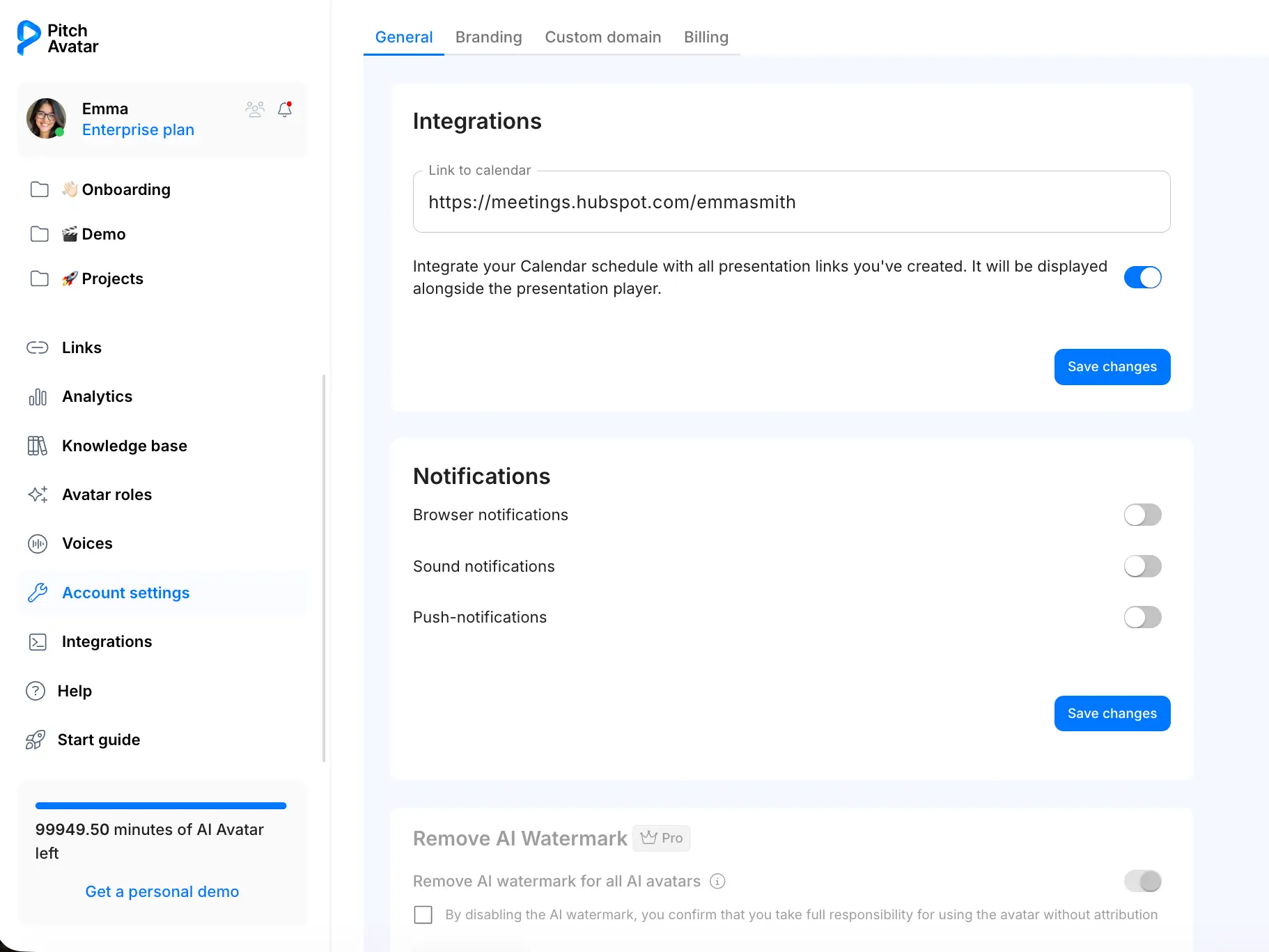
Open Account settings
Log in to your Pitch Avatar account. Once on your dashboard, navigate to the Account settings section on the left side of the page.
Go to Delete account
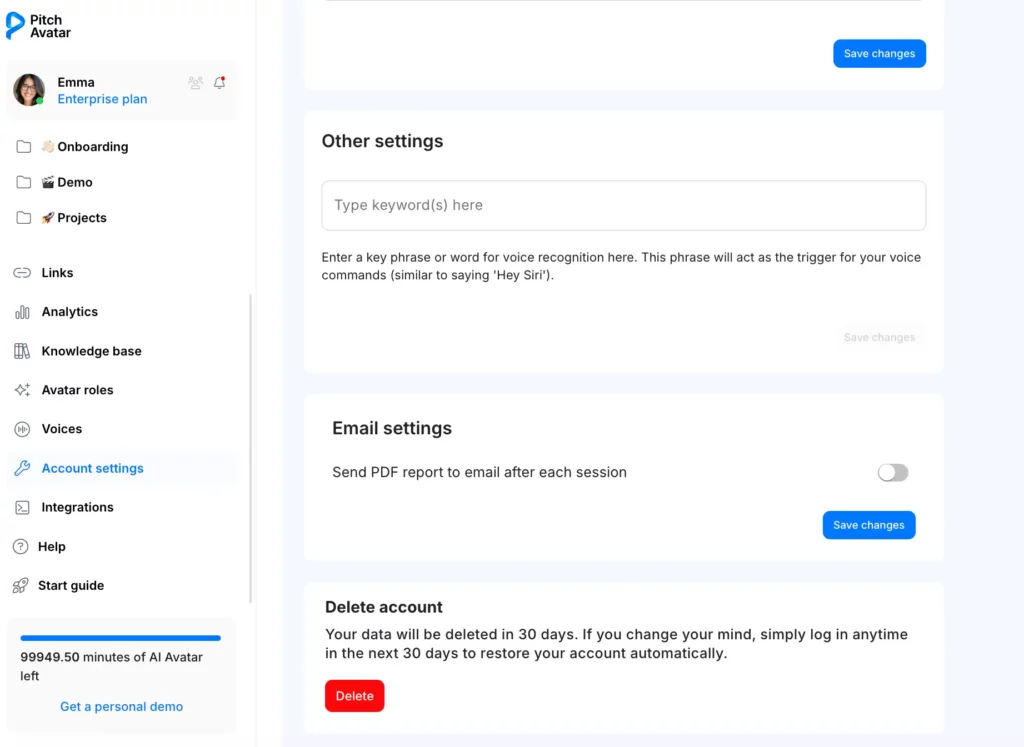
Within the General tab, scroll to the bottom of the page. You will find the Delete account button located at the end of the settings list.
Leave us your feedback
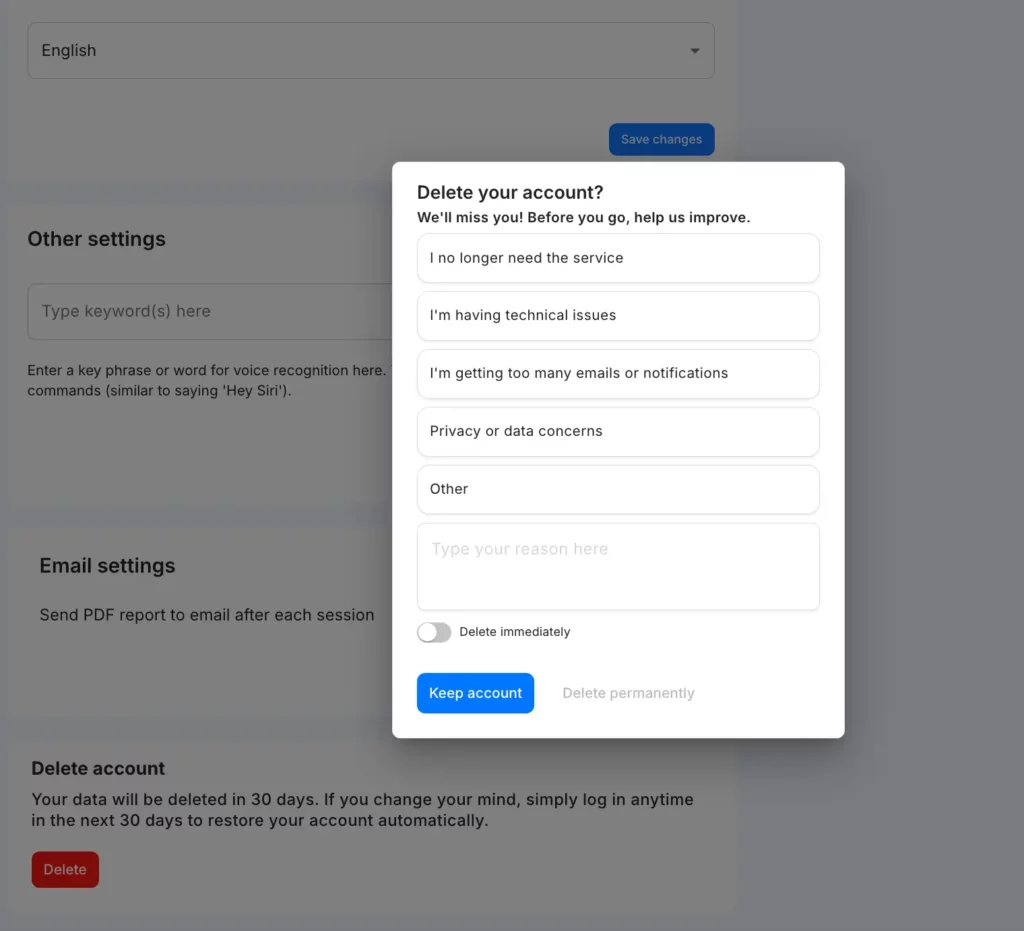
Before proceeding, a window will appear asking for the reason for your decision. Please select the reason that best describes why you are leaving; your feedback helps us improve the platform.
Choose deletion method
You can decide how and when your data is removed. Choose the option that works best for you:
Standard deletion
Immediate permanent deletion
If you click the Keep account button after initiating the process, your account will be scheduled for deletion in 30 days. This allows you to change your mind or log back in to retrieve important information before it is gone forever.
If you prefer to remove all your data right away without a waiting period:
Enable the Delete immediately toggle.
Click the Delete permanently button.
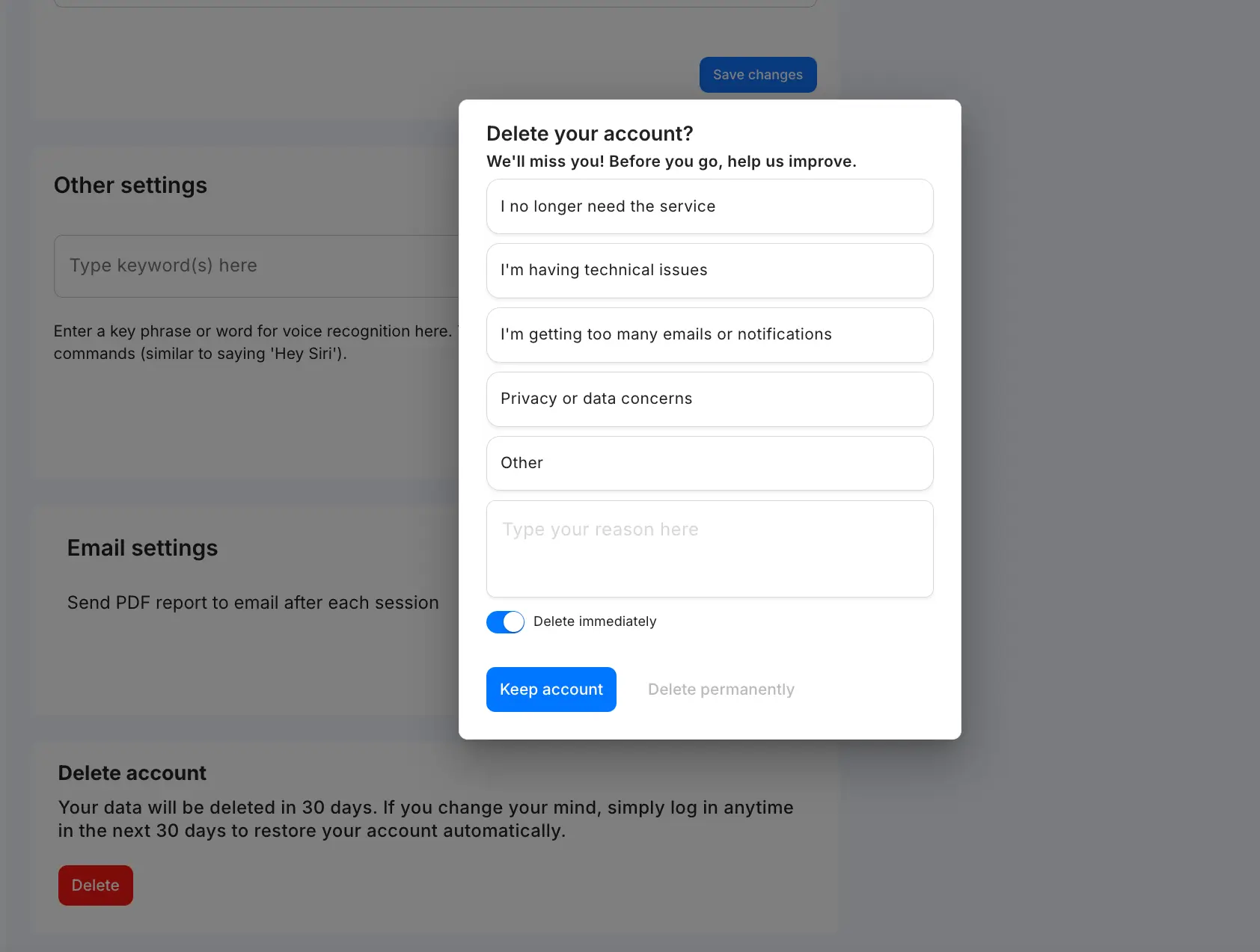
Note: This action cannot be undone. Once you click Delete permanently, all your presentations, settings, and data will be erased immediately.